
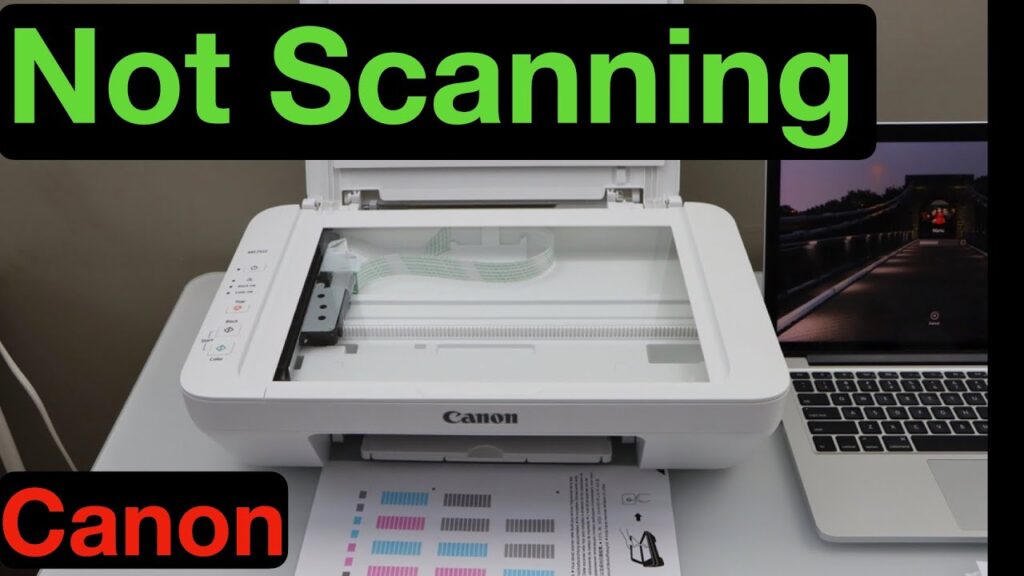
A multifunction printer allows you to print, scan, and sometimes copy documents using a single device. When everything works correctly, these features make daily tasks much easier. However, many users experience a situation where the printer prints documents without any problem but refuses to scan.
Why Does My Printer Print but Not Scan?
Printing and scanning use different software components, even though they are part of the same printer.
The printing feature may work correctly while the scanning feature experiences communication or software problems.
This means your printer can receive print jobs but your computer cannot communicate with the scanner.
Understanding this difference makes troubleshooting easier.
Restart the Printer
- Temporary software issues may affect the scanner.
- Turn off the printer completely.
- Disconnect the power cable for a short time.
- Reconnect the cable and turn the printer back on.
- Allow the printer to finish starting before attempting another scan.
- Restarting refreshes the printer system and often clears temporary problems.
Restart Your Computer
- Your computer may also experience temporary communication issues.
- Restart the computer completely.
- Once it has restarted, open your scanning application and try scanning again.
- Many software conflicts disappear after a restart.
Check the Printer Connection
- A poor connection can interrupt scanning even if printing still works.
- If you use a cable connection, make sure the cable is securely connected.
- If your printer uses Wi-Fi, confirm that both the printer and your computer are connected to the same wireless network.
- A stable connection is essential for successful scanning.
Check Whether the Scanner Is Detected
- Open your computer’s printer and scanner settings.
- Confirm that the scanner is detected.
- If the scanner does not appear, reconnect the printer or refresh the device list.
- Your computer must recognize the scanner before scanning can begin.
Check the Scanner Driver
- The scanner uses software that allows it to communicate with your computer.
- If the scanner driver is outdated, damaged, or missing, scanning may fail even though printing continues normally.
- Review the scanner driver.
- Update or reinstall it if necessary.
- Restart the computer after completing the installation.
Check the Scanning Application
- Sometimes the problem is not with the printer but with the application used for scanning.
- Close the application completely.
- Open it again and try another scan.
- If necessary, select the correct scanner from the available device list.
- Choosing the wrong device may prevent scanning.
Remove and Add the Printer Again
- If your computer cannot communicate with the scanner, removing and adding the printer again may help.
- Delete the printer from your computer settings.
- Restart both the printer and the computer.
- Search for the printer again and complete the setup.
- A fresh connection often restores scanning functions.
Check the Printer Status
- Open the printer settings.
- Make sure the printer is ready and not showing an offline status.
- If the printer is unavailable, scanning may also stop working.
- Correct printer status improves communication.
Check for Computer Updates
- Computer updates often improve compatibility with printers and scanners.
- Review your system update settings.
- Install available updates.
- Restart the computer afterward.
- Updated software can improve scanning performance.
Test the Scanner
- After completing the troubleshooting steps, scan a simple document.
- If the scan is successful, the communication problem has been resolved.
- If scanning still does not work, continue reviewing the connection and software settings.
Common Reasons a Printer Prints but Does Not Scan
Several different issues may cause this problem.
Common causes include:
- Scanner driver problems.
- Scanner not detected.
- Outdated scanner software.
- Weak wireless connection.
- Loose cable connection.
- Incorrect scanner settings.
- Temporary software conflicts.
- Printer showing offline.
- Computer communication problems.
- Incorrect device selection.
- Damaged scanner software.
- System compatibility issues.
Checking these areas helps identify the problem more quickly.
Tips to Prevent Scanner Problems
- Regular maintenance helps keep both printing and scanning working properly.
- Keep the printer and scanner software updated.
- Restart the printer occasionally.
- Maintain a stable connection between the printer and your computer.
- Keep your computer updated.
- Use the correct scanning application.
- Check the scanner settings regularly.
- These simple habits help improve scanner reliability.
FAQs
Why does my printer print but not scan?
This usually happens because of scanner driver problems, communication issues, incorrect scanner settings, or outdated software.
Can a scanner driver cause scanning problems?
Yes. A damaged or outdated scanner driver can prevent your computer from communicating with the scanner.
Why is my scanner not detected?
The scanner may not be connected properly, the software may not recognize it, or there may be a communication problem.
Should I reinstall the printer if scanning does not work?
Yes. Removing and adding the printer again can often restore communication between the scanner and your computer.
Can a wireless connection affect scanning?
Yes. A weak or unstable wireless connection can interrupt communication and prevent scanning.
Conclusion
A printer that prints but does not scan is usually experiencing a communication or software problem rather than a hardware failure. Since printing and scanning rely on different software components, one feature may continue working while the other stops.
Restarting the printer and computer, checking the connection, updating the scanner driver, verifying the scanner settings, and reconnecting the printer can solve many scanning problems.