
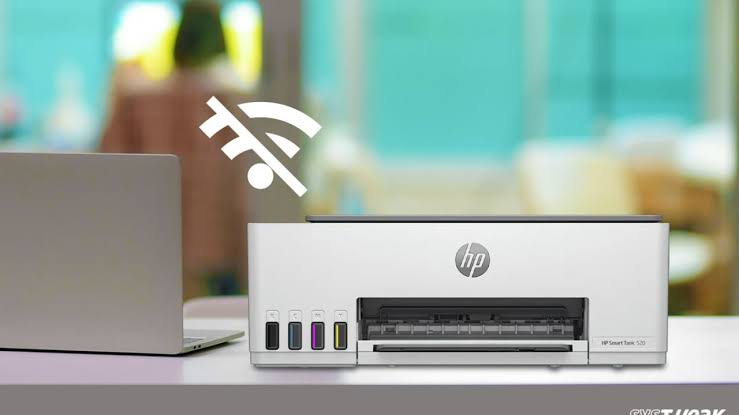
It can be confusing when your HP printer shows that it is connected to Wi-Fi, but your computer cannot detect it. The printer may appear connected on its display, yet it does not show up in the list of available printers or refuses to respond when you try to print. As a result, you cannot complete your printing tasks even though the wireless connection seems to be working.
The good news is that this issue is usually caused by network settings, outdated software, or communication problems rather than a hardware failure. In most cases, you can solve the problem with a few simple troubleshooting steps.
Why Can’t My Computer Find My HP Printer?
When your HP printer is connected to Wi-Fi, it must communicate with your computer through the same wireless network.
If that communication is interrupted, your computer may not detect the printer even though the printer shows a successful Wi-Fi connection.
The issue may be related to network settings, printer software, or your computer’s configuration.
Make Sure Both Devices Are Connected to the Same Wi-Fi Network
- One of the most common causes is that the computer and printer are connected to different wireless networks.
- Check the Wi-Fi connection on both devices.
- If your router provides multiple wireless networks, confirm that both the printer and the computer are connected to the same one.
Restart the Printer and Computer
- Temporary communication problems can prevent the computer from detecting the printer.
- Turn off the printer.
- Restart your computer.
- If you are using a wireless connection, restart your Wi-Fi router as well.
- Turn the printer back on after everything has restarted.
Check the Printer Status
- Open your computer’s printer settings.
- Verify that the HP printer is not showing as Offline or Paused.
- If it is, change the status and try printing again.
Move the Printer Closer to the Router
- A weak wireless signal can interrupt communication between the printer and the computer.
- Move the printer closer to the router and remove obstacles that may block the Wi-Fi signal.
Update the Printer Driver
- An outdated or damaged printer driver is one of the most common reasons a computer cannot detect a printer.
- Install the latest driver for your HP printer model and operating system.
- Restart your computer after updating the driver.
Update the Printer Firmware
- Firmware updates improve wireless performance and compatibility with computers and routers.
- Keeping your printer firmware updated helps prevent connection problems.
Remove and Add the Printer Again
- If your computer still cannot find the printer, remove it from the list of installed printers.
- Restart both the printer and the computer.
- Add the printer again using the recommended wireless setup process.
- A fresh installation often restores communication.
Check Firewall or Antivirus Settings
- Some firewall or antivirus programs can block communication between the computer and the printer.
- Review your security settings and allow the printer to communicate through the network.
Use the HP Smart App
- The HP Smart app can help detect your printer and guide you through the setup process.
- If the printer is not listed in your computer’s settings, the app may help reconnect it to the system.
Verify Network Discovery Is Enabled
- Your computer must be able to discover devices on the network.
- Make sure network discovery is enabled in your operating system so that it can locate your HP printer.
Print a Network Configuration Report
- Many HP printers allow you to print a network configuration report.
- This report provides useful information about the printer’s wireless connection and can help identify network-related issues.
Common Reasons a Computer Cannot Find an HP Printer
If the problem continues, one of these issues may be responsible:
- Computer connected to a different Wi-Fi network.
- Weak wireless signal.
- Printer offline status.
- Outdated printer driver.
- Outdated printer firmware.
- Firewall or antivirus software blocking communication.
- Network discovery disabled.
- Temporary software conflicts.
- Printer installation issues.
- Router communication problems.
- Incorrect network settings.
- Wireless interference.
Checking these possible causes can help you identify the issue more quickly.
Tips to Prevent Printer Detection Problems
Following these simple practices can help maintain a reliable connection.
- Keep the printer and computer on the same Wi-Fi network.
- Update the printer driver regularly.
- Install firmware updates whenever available.
- Restart the printer occasionally.
- Keep your router firmware updated.
- Avoid unnecessary changes to your Wi-Fi settings.
- Print a network configuration report after reconnecting the printer.
- Test the printer after software updates.
These habits help reduce future connection issues.
FAQs
Why is my HP printer connected to Wi-Fi but not showing on my computer?
This usually happens because the printer and computer are on different networks, the printer driver is outdated, or communication is being blocked.
Can a weak Wi-Fi signal prevent my computer from finding the printer?
Yes. A poor wireless signal can interrupt communication between the printer and the computer.
Should I reinstall my HP printer?
Yes. Removing and adding the printer again can resolve software conflicts and restore communication.
Why should I update the printer driver and firmware?
Updating both improves compatibility, fixes known issues, and enhances wireless performance.
Can firewall software stop my computer from detecting the printer?
Yes. Some firewall or antivirus programs may block communication between your computer and the printer.
Conclusion
An HP printer connected to Wi-Fi but not detected by your computer is usually affected by communication or software issues rather than hardware failure. Network configuration problems, outdated drivers, disabled network discovery, and security software are among the most common causes.
By verifying that both devices are on the same network, updating the printer driver and firmware, restarting your devices, enabling network discovery, and reinstalling the printer if necessary, you can resolve most detection problems and restore wireless printing.