
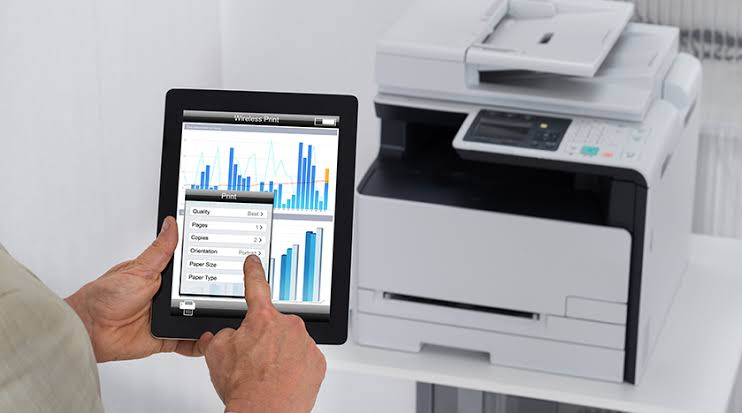
A wireless printer makes printing more convenient by allowing you to print from your computer, laptop, tablet, or smartphone without using cables. However, there are times when your printer may lose its Wi-Fi connection. This can happen after changing your wireless router, updating your network settings, changing the Wi-Fi password, or moving the printer out of the router’s range.
When your printer is no longer connected to Wi-Fi, it may appear offline, fail to receive print jobs, or disappear from your list of available printers. Fortunately, reconnecting the printer is usually a simple process. Resetting the printer’s wireless settings and connecting it to your current Wi-Fi network can often restore normal printing.
Why Would You Need to Reset Your Printer to Wi-Fi?
Your printer stores the wireless network information that was used during the initial setup.
If your network name, password, or router changes, the stored settings may no longer work.
Resetting the wireless settings allows the printer to connect to your current Wi-Fi network.
Restart Your Printer
- Begin by turning off the printer.
- Disconnect the power cable for a short time.
- Reconnect the cable and turn the printer back on.
- Allow the printer to complete its startup process before reconnecting it to Wi-Fi.
- A restart often clears temporary connection problems.
Restart Your Wireless Router
- Restart your router before reconnecting the printer.
- Wait until the network is fully restored.
- A refreshed wireless connection may resolve temporary network issues.
Reset the Printer’s Wireless Settings
- Open the printer’s wireless or network settings.
- Choose the option to restore or reset the wireless settings.
- This removes the previous Wi-Fi information and prepares the printer for a new connection.
Connect the Printer to Your Wi-Fi Network
- After resetting the wireless settings, select your Wi-Fi network from the available list.
- Enter the correct Wi-Fi password carefully.
- Wait for the printer to confirm that the connection has been established.
Keep the Printer Near the Router
- During the setup process, place the printer close to your wireless router.
- A stronger signal helps the printer connect more quickly and reduces the chance of connection failures.
- You can move the printer later if the signal remains strong.
Verify That Both Devices Are on the Same Network
- Make sure your computer and printer are connected to the same Wi-Fi network.
- If they are connected to different networks, your computer may not detect the printer.
Update the Printer Driver
- An outdated printer driver may cause communication problems even after the printer reconnects to Wi-Fi.
- Install the latest driver that matches your printer model and operating system.
- Restart your computer after updating the driver.
Remove and Add the Printer Again
- If your computer still cannot find the printer, remove it from your printer settings.
- Restart the printer and your computer.
- Add the printer again using the normal setup process.
- A fresh installation often restores communication.
Print a Test Page
- After reconnecting the printer, print a test page.
- A successful test confirms that the printer is connected to Wi-Fi and communicating correctly with your computer.
Common Reasons a Printer Loses Its Wi-Fi Connection
Several issues can interrupt the printer’s wireless connection.
Common causes include:
- Changed Wi-Fi password.
- New wireless router.
- Weak Wi-Fi signal.
- Printer too far from the router.
- Network configuration changes.
- Outdated printer driver.
- Incorrect wireless settings.
- Temporary software conflicts.
- Router communication issues.
- Operating system compatibility problems.
- Printer configuration errors.
- Interrupted wireless setup.
Reviewing these possibilities helps identify the problem more quickly.
Tips to Keep Your Printer Connected to Wi-Fi
Regular maintenance helps improve wireless reliability.
- Keep the printer within range of the router.
- Maintain a strong Wi-Fi signal.
- Update the printer driver regularly.
- Keep your operating system updated.
- Restart the printer occasionally.
- Restart the router if connection problems occur.
- Verify your network settings after changing your router.
- Print a test page after reconnecting the printer.
These simple habits help reduce future wireless connection problems.
FAQs
Why do I need to reset my printer to Wi-Fi?
You may need to reset the wireless settings after changing your router, updating your Wi-Fi password, or experiencing connection problems.
How do I reconnect my printer to Wi-Fi?
Reset the printer’s wireless settings, choose your Wi-Fi network, enter the correct password, and wait for the connection to complete.
Why can’t my computer find my wireless printer?
This may happen if the printer and computer are connected to different Wi-Fi networks, the wireless signal is weak, or the printer driver is outdated.
Should I update my printer driver?
Yes. Keeping the printer driver updated improves communication, compatibility, and overall printing performance.
Why should I print a test page?
A test page confirms that the printer has successfully reconnected to Wi-Fi and is working properly.
When should I get printer help?
Additional printer help may be useful if your printer continues having Wi-Fi connection problems after completing the recommended troubleshooting steps.
Conclusion
Resetting your printer to Wi-Fi is often the quickest way to restore wireless printing after changing your router, updating your network settings, or experiencing connection problems. Most issues are caused by outdated wireless settings, weak signals, incorrect passwords, or driver-related problems.
Restarting the printer and router, resetting the wireless settings, reconnecting the printer to the correct network, updating the printer driver, and reinstalling the printer can solve most Wi-Fi connection issues.