
Printer drivers are essential software that allow your computer and printer to communicate with each other. Every time you print a document, the driver translates your computer’s instructions into a language your printer can understand. If the driver becomes damaged, outdated, or corrupted, your printer may stop working correctly. Common problems include the printer not responding, offline errors, print jobs getting stuck, poor print quality, or the printer not being detected by your computer.
Reinstalling the printer driver is one of the most effective ways to resolve these issues. A fresh installation replaces damaged files, removes software conflicts, and restores proper communication between your computer and the printer.
The process is usually simple and does not require advanced technical knowledge. This guide explains how to reinstall printer drivers and troubleshoot common driver-related problems.
Why Should You Reinstall Printer Drivers?
Printer drivers can become corrupted because of incomplete updates, software conflicts, operating system changes, or installation errors.
Reinstalling the driver replaces damaged files and restores stable communication between your computer and printer.
In many cases, it solves printing problems without replacing the printer.
Restart Your Computer
- Before reinstalling the driver, restart your computer.
- A restart clears temporary software issues that may interfere with the installation process.
- After restarting, continue with the driver reinstallation.
Disconnect the Printer
- If your printer uses a USB cable, disconnect it from your computer before removing the driver.
- For wireless printers, ensure the printer remains powered on but is not actively processing print jobs.
- This helps avoid installation conflicts.
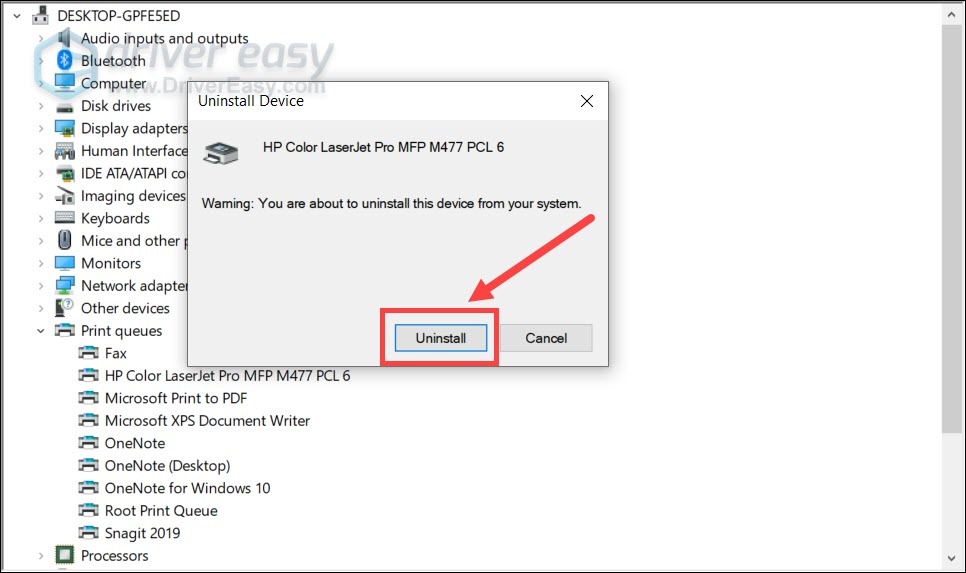
Remove the Existing Printer Driver
- Open your computer’s printer settings and remove the existing printer driver.
- Also remove the printer from the list of installed devices if necessary.
- Restart your computer after removing the driver.
- This prepares the system for a clean installation.
Download the Correct Printer Driver
- Obtain the latest printer driver designed for your printer model and operating system.
- Using the correct driver improves compatibility and helps prevent future printing issues.
- Save the installation file in an easy-to-find location.
Install the New Printer Driver
- Run the printer driver installation and follow the instructions carefully.
- Allow the installation to finish without interruption.
- If prompted, restart your computer after the installation is complete.
Reconnect the Printer
- Reconnect your printer after the driver has been installed.
- For USB printers, connect the cable securely.
- For wireless printers, verify that the printer is connected to the same Wi-Fi network as your computer.
- Proper connectivity is essential for successful communication.
Set the Printer as the Default Printer
- Open your printer settings and make sure the correct printer is selected as the default printer.
- This helps ensure future print jobs are sent to the correct device.
Restart the Print Spooler Service
- If printing problems continue, restart the Print Spooler service.
- This refreshes the printing system and can resolve communication issues after reinstalling the driver.
Update Your Operating System
- Install any available operating system updates.
- Updated system software improves compatibility with modern printer drivers and helps reduce software conflicts.
- Restart your computer after installing updates.
Print a Test Page
- After reinstalling the driver, print a test page.
- A successful test confirms that the printer driver has been installed correctly and the printer is communicating properly with your computer.
Common Reasons Printer Drivers Need Reinstallation
Several issues may require you to reinstall the printer driver.
Common causes include:
- Corrupted printer driver.
- Outdated printer driver.
- Incomplete driver installation.
- Printer not responding.
- Printer offline errors.
- Print jobs stuck in the queue.
- Operating system updates.
- Software conflicts.
- Communication problems.
- Printer not detected.
- Driver compatibility issues.
- Damaged installation files.
Reviewing these possibilities helps identify the issue more quickly.
Tips to Prevent Printer Driver Problems
Good maintenance habits help keep your printer working reliably.
- Keep the printer driver updated.
- Install operating system updates regularly.
- Restart your computer after major software updates.
- Maintain a stable printer connection.
- Remove unused printer drivers.
- Avoid interrupting driver installations.
- Clear completed print jobs regularly.
- Print a test page after installing a new driver.
These simple habits help reduce future driver-related problems.
FAQs
Why should I reinstall my printer driver?
Reinstalling the driver replaces damaged or corrupted files and restores proper communication between your computer and printer.
Will reinstalling the printer driver delete my documents?
No. Reinstalling the printer driver only affects the printer software and does not remove your personal files or documents.
Should I remove the old driver before installing a new one?
Yes. Removing the old driver helps prevent software conflicts and ensures a clean installation.
Can an outdated driver stop my printer from working?
Yes. An outdated or incompatible driver can cause printing errors, communication problems, and printer detection issues.
Why should I print a test page after reinstalling the driver?
A test page confirms that the new driver has been installed correctly and the printer is working properly.
When should I get printer help?
Additional printer help may be useful if your printer continues experiencing driver-related problems after completing the recommended troubleshooting steps.
Conclusion
Reinstalling your printer driver is one of the most effective ways to fix common printing problems. Corrupted drivers, outdated software, incomplete installations, and operating system changes can all affect communication between your computer and printer.
By removing the old driver, installing the correct version, reconnecting the printer, restarting the Print Spooler service, and printing a test page, you can solve many driver-related issues quickly and safely.