
A stuck printer queue is a common issue that can prevent your printer from working properly. You may send a document to print, only to find that it remains in the queue without printing or deleting. As more print jobs are added, the queue becomes blocked, and your printer may stop responding altogether.
What Is a Printer Queue?
A printer queue is a temporary list of documents waiting to be printed.
Whenever you print a file, your computer places it in the queue before sending it to the printer. The printer processes each document in the order it was received.
If one document becomes stuck, it may prevent every other print job from moving forward.
Understanding how the print queue works makes troubleshooting much easier.
Why Does the Printer Queue Get Stuck?
Several different situations can prevent print jobs from being removed.
Some of the most common causes include:
- Temporary software errors.
- Interrupted communication between the printer and computer.
- Printer connection problems.
- Outdated printer drivers.
- Printer turned off during printing.
- Paper jams.
- Low ink levels.
- Damaged print jobs.
- Printing service issues.
Identifying the cause helps you choose the most effective solution.
Cancel the Print Jobs
- Begin by opening the printer queue on your computer.
- Select the documents waiting to print and choose the option to cancel them.
- Wait a few moments to see whether the jobs disappear.
- If they remain in the queue, continue with the next troubleshooting step.
Restart the Printer
- Turn off the printer using the power button.
- Wait briefly before turning it back on.
- Restarting the printer refreshes its internal memory and often clears temporary communication issues.
- Once the printer finishes starting, check whether the queue has cleared.
Restart Your Computer
- Sometimes the problem is caused by your computer rather than the printer.
- Restart the computer to refresh system processes that manage printing.
- After restarting, open the printer queue again and check whether the stuck print jobs have disappeared.
Check the Printer Connection
- A poor connection between the printer and the computer can prevent print jobs from being removed.
- If you are using a cable connection, verify that the cable is securely attached.
- For wireless printers, confirm that both the printer and computer are connected to the same wireless network.
- A stable connection improves communication and helps clear the queue.
Make Sure the Printer Is Ready
Your computer may be unable to clear the queue if the printer is displaying an error.
Check for messages such as:
- Paper jam.
- Empty paper tray.
- Low ink.
- Open printer cover.
- Connection warning.
Resolve any visible printer issues before trying to clear the queue again.
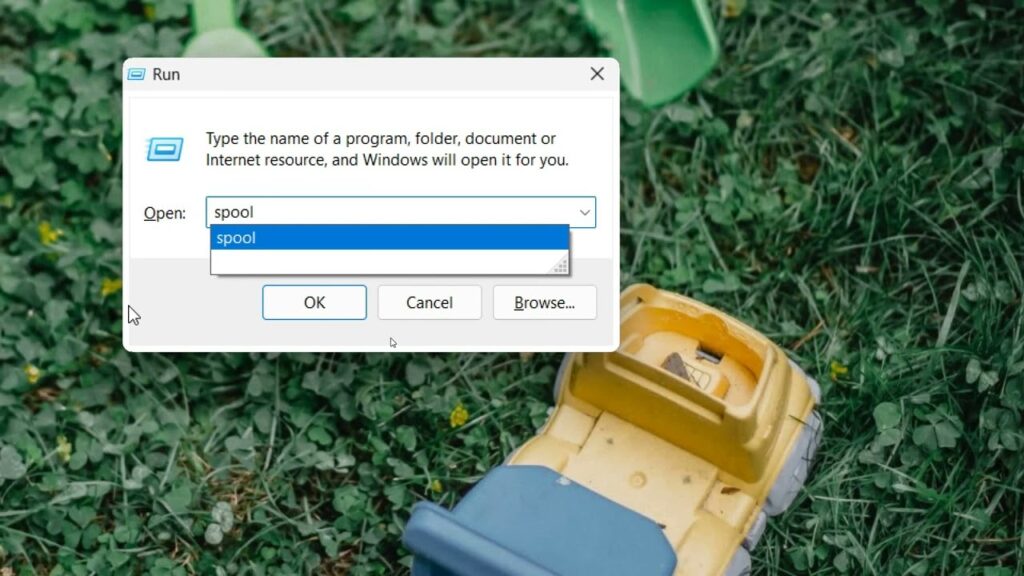
Restart the Print Service
- Your computer uses a printing service to manage communication with the printer.
- If this service stops responding, print jobs may become stuck.
- Restarting the printing service refreshes the connection between your computer and printer, allowing the queue to function normally again.
- This step often resolves stubborn queue problems.
Remove the Printer and Add It Again
- If the queue continues to remain stuck, remove the printer from your computer and add it again.
- Creating a fresh connection can correct damaged printer settings and restore normal communication.
- After reconnecting the printer, send a small test print to confirm everything is working correctly.
Update the Printer Driver
- The printer driver plays an important role in managing print jobs.
- If the driver is outdated or damaged, print jobs may remain in the queue indefinitely.
- Updating the printer driver improves compatibility and helps resolve communication issues.
- Keeping the driver updated also improves overall printer performance.
Update Your Operating System
- Operating system updates often include improvements that affect printing.
- Installing the latest updates helps improve compatibility with printer drivers and fixes software problems that may affect the print queue.
- Restart your computer after completing the update.
Check for Multiple Copies of the Printer
- Sometimes your computer stores more than one version of the same printer.
- If the wrong printer is selected, print jobs may become stuck.
- Review the printer list and choose the correct printer before sending new documents to print.
Avoid Sending Multiple Large Print Jobs
- Sending several large documents at the same time may overload the print queue.
- Whenever possible, wait for one document to finish printing before sending another.
- Managing print jobs carefully reduces the chance of the queue becoming blocked.
Keep Your Printer Clean
- Dust and paper debris may contribute to printer errors that interrupt printing.
- Regular cleaning helps the printer operate more smoothly and reduces unexpected issues.
- Although cleaning does not directly clear the queue, it supports reliable printer performance.
Common Reasons Print Jobs Will Not Delete
Several different factors may prevent print jobs from being removed.
Common causes include:
- Temporary software glitches.
- Outdated printer drivers.
- Interrupted communication.
- Printer errors.
- Printing service problems.
- Damaged print files.
- Network connection issues.
- Incorrect printer selection.
Understanding these causes makes troubleshooting much easier.
FAQs
Why won’t my printer queue delete?
A printer queue may remain stuck because of software glitches, communication problems, outdated drivers, damaged print jobs, or printer errors.
Can restarting my printer clear the queue?
Yes. Restarting the printer often clears temporary memory and restores communication with your computer.
Why do print jobs stay in the queue?
Print jobs may remain in the queue because the printer is offline, the printing service has stopped responding, or a damaged print job is blocking the queue.
Should I update my printer driver?
Yes. Updating the printer driver improves compatibility and helps resolve many print queue problems.
Can a paper jam prevent the queue from clearing?
Yes. Printer errors such as paper jams or low ink may stop the printer from processing and removing print jobs.
Conclusion
A printer queue that will not delete can interrupt your work, but the problem is usually easy to solve. Temporary software glitches, communication issues, outdated drivers, or printer errors are among the most common causes.