
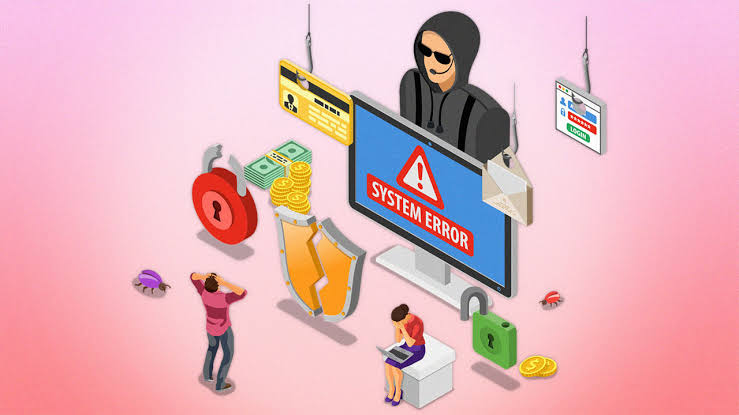
Antivirus software plays a vital role in protecting your computer from viruses, malware, ransomware, spyware, and other online threats. One of its most important features is the ability to perform regular system scans that identify and remove harmful files before they can damage your device or compromise your personal information.
However, there are times when the antivirus scan refuses to start, freezes during the scanning process, crashes unexpectedly, or never completes. When this happens, your computer may remain vulnerable to security threats, making it important to resolve the issue as soon as possible.
Common Reasons Why Your Antivirus Scan Is Not Working
Understanding the cause of the problem makes it easier to choose the right solution.
Outdated Antivirus Software
Older antivirus versions may not work properly with the latest operating system updates or newly discovered security threats.
Expired Antivirus Subscription
Some antivirus programs disable certain features, including full system scans, when the subscription has expired.
Corrupted Program Files
Damaged installation files can prevent the antivirus application from launching or completing a scan.
Software Conflicts
Running multiple security programs at the same time may create conflicts that interrupt scanning.
Malware Interference
Some advanced malware attempts to disable antivirus software to avoid detection.
Insufficient System Resources
A lack of available memory or high processor usage may cause scans to freeze or stop unexpectedly.
Operating System Issues
Missing or damaged system files can interfere with antivirus performance.
Incorrect Program Settings
Changes to scan schedules or security settings may prevent scans from running.
Signs That Your Antivirus Scan Is Not Working
You may notice one or more of the following symptoms.
- The antivirus scan never starts.
- The scan freezes at a certain percentage.
- The application closes unexpectedly.
- Full system scans never finish.
- Error messages appear during scanning.
- Scheduled scans do not run automatically.
- The antivirus program becomes unresponsive.
These symptoms usually indicate a software or system issue rather than a hardware problem.
How to Fix an Antivirus Scan That Is Not Working
Restart Your Computer
A simple restart refreshes system processes and may resolve temporary software issues.
Update the Antivirus Software
Install the latest updates to ensure the antivirus program has the newest security improvements and bug fixes.
Check Your Subscription Status
Verify that your antivirus subscription is active and that all scanning features remain available.
Close Unnecessary Programs
Shut down applications running in the background to free system resources before starting a scan.
Check for Software Conflicts
If multiple antivirus or security applications are installed, disable or remove unnecessary ones to reduce conflicts.
Run a Quick Scan First
If a full scan fails, try running a quick scan to determine whether the program is functioning correctly.
Review Scan Settings
Check the antivirus settings to ensure scanning features and scheduled scans are enabled.
Restart the Antivirus Application
Close the program completely and launch it again before attempting another scan.
Repair or Reinstall the Antivirus Program
If the software continues to malfunction, repairing or reinstalling it can replace damaged program files.
Update Your Operating System
Install the latest operating system updates to improve compatibility and system stability.
Run Another Full Scan
After completing the troubleshooting steps, perform a full system scan to confirm the issue has been resolved.
Tips to Keep Your Antivirus Working Properly
Following these best practices helps maintain reliable antivirus protection.
- Keep your antivirus software updated.
- Install operating system updates regularly.
- Perform regular system scans.
- Keep your antivirus subscription active.
- Avoid installing multiple antivirus programs.
- Restart your computer periodically.
- Monitor available storage space.
- Remove unnecessary temporary files.
- Download software only from trusted sources.
- Review your antivirus settings regularly.
Common Mistakes to Avoid
Avoid these common mistakes that may prevent antivirus scans from working correctly.
- Ignoring antivirus updates.
- Allowing the subscription to expire.
- Running multiple antivirus programs simultaneously.
- Interrupting scans before they finish.
- Disabling real-time protection unnecessarily.
- Ignoring antivirus error messages.
- Skipping regular system maintenance.
Avoiding these mistakes improves your computer’s security and helps keep the antivirus functioning properly.
FAQs
Why won’t my antivirus scan start?
This may happen because of outdated software, an expired subscription, corrupted program files, software conflicts, or temporary system issues.
Can malware stop my antivirus scan from working?
Yes. Some types of malware attempt to disable or interfere with antivirus software to avoid detection.
Should I reinstall my antivirus if scans keep failing?
Yes. Reinstalling the antivirus program can replace damaged files and resolve persistent software issues.
Why does my antivirus scan freeze?
A scan may freeze because of insufficient system resources, corrupted files, software conflicts, or malware interference.
How can I prevent antivirus scan problems?
Keep your antivirus updated, maintain an active subscription, avoid installing multiple antivirus programs, perform regular system maintenance, and run routine scans to keep your computer protected.
Conclusion
If your antivirus scan is not working, the problem is usually caused by outdated software, expired subscriptions, corrupted program files, software conflicts, insufficient system resources, or temporary operating system issues. Fortunately, most of these problems can be resolved by updating the antivirus software, checking your subscription, reviewing program settings, restarting your computer, or reinstalling the application if necessary.